Saved discoveries & review
Save, load, copy, export, and compare discovery snapshots. Review selected components, network settings, drivers, widgets, and locations before importing.
Product captures + interactive workflow
Explore the actual Dashboard, Control Center, Floor Plan Editor, Widget Designer, Driver Designer, and Email Alerts workspace. Try the discovery walkthrough below, then explore six existing product captures from PI™ - Command Center. The captures are visual references and may differ from the supplied September 18 system snapshot.
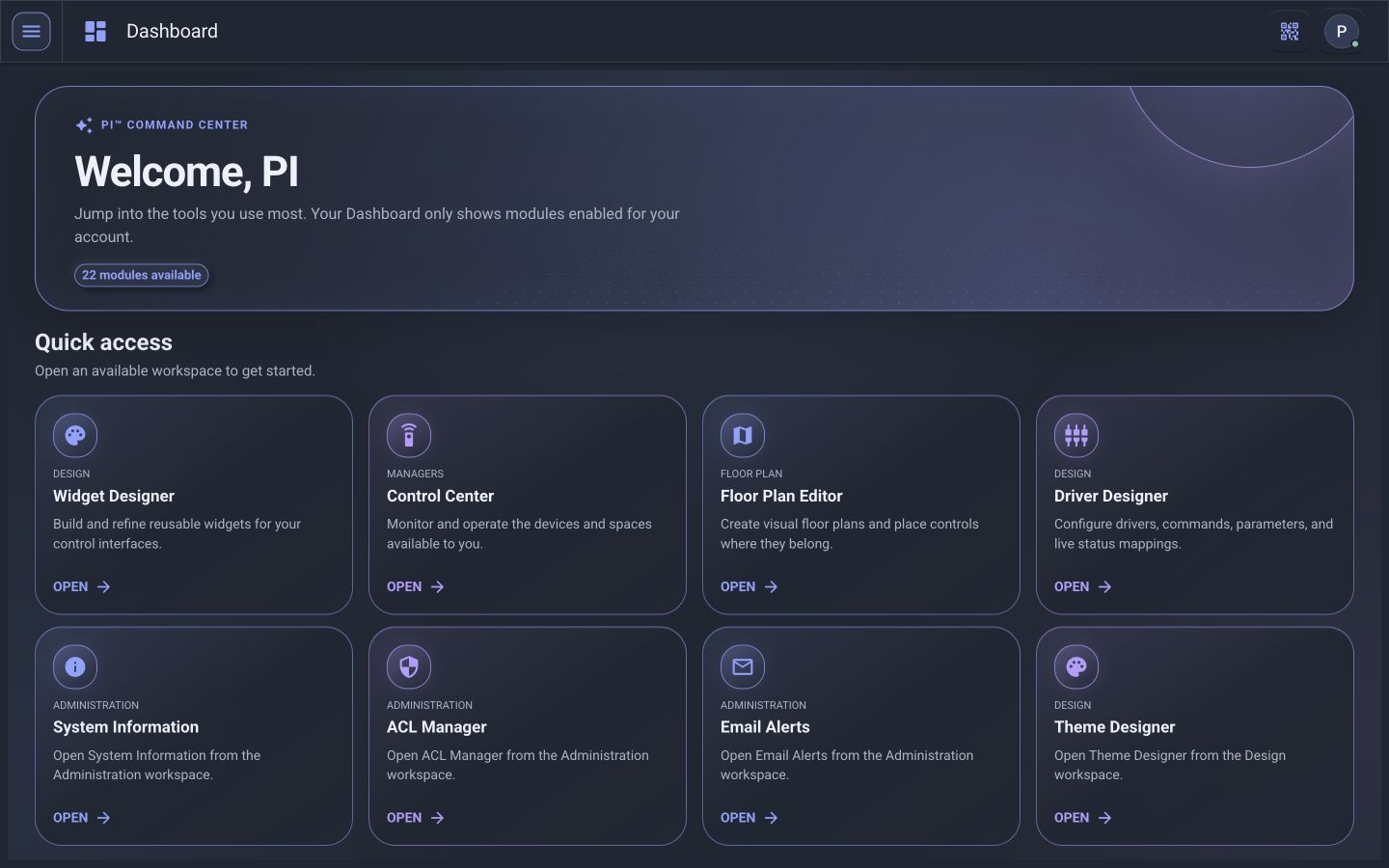
The Dashboard is role-aware: each person sees only the modules enabled for their account.
System workflow · September 18 snapshot
Explore the discovery-to-import workflow with fictional equipment. All actions stay in this browser; no network scan, hardware command, or server import is performed.
Discover supported DLM equipment through a BACnet/IP connection.
Select components to preview their import destination.
Choose a connection and load the sample discovery to begin.
Ready to explore with sample data.
Save, load, copy, export, and compare discovery snapshots. Review selected components, network settings, drivers, widgets, and locations before importing.
Use supported DLM load and room-hours controls. Roku widgets expose app launching, favorites, and search where the device and app support them.
The Android client can locate a host on the local network. Network Diagnostics shows saved observations and history; refreshing that view does not start a new network scan.
LMCI-100 USB uses the Legrand IRB serial workflow; it is a separate connection from BACnet/IP. Availability and write support depend on the connected equipment. Explore integration requirements →
Product tutorial
Use this workspace overview to compare the operator path through Dashboard and Control Center with the builder path through Floor Plan Editor, Widget Designer, Driver Designer, and Email Alerts.
The PI™ - Command Center Dashboard presents Quick access cards for the modules enabled by the user’s role. Choose Control Center to operate spaces, or move directly into a design workspace.
Use the Locations sidebar to select a building, floor, or area. PI then loads the widgets and floor plans assigned to that location in the main workspace.
Upload a plan or sketch zones on the canvas. Use the toolbar to move, interact, draw rectangles or paths, manage zoom, and arrange the layer stack.
Choose a canvas size, add components from the Palette, and edit the selected component in Properties. The real designer includes interaction states, animation, parameters, alignment, grouping, and reusable widget tools.
Select an existing driver or upload a compatible package, then configure Details, Commands, Categories, Parameters, Flags, Widget Command Mapping, Live Status, and the API Tester from one workspace.
Authorized administrators can define the sender mailbox and delivery settings used by configured alert workflows without exposing those settings in everyday operator views.
See it with your building
We’ll show how these same workspaces apply to your locations, roles, devices, and integrations.